
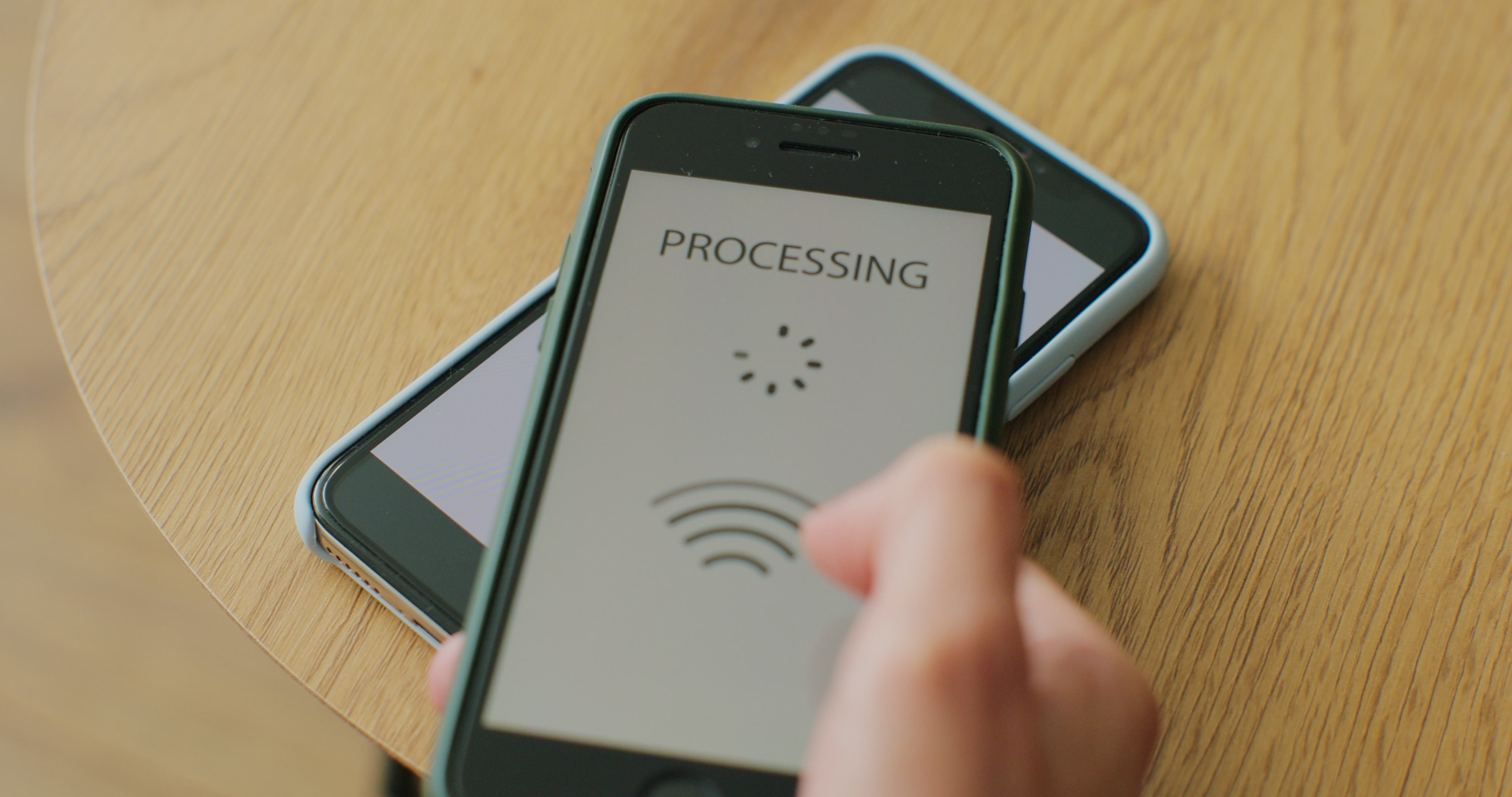
eSIM stuck on activating is a common issue on both iPhone and Android, especially when travelling abroad. While it can be frustrating, the cause is often simple and easy to fix. In this guide, we explain why eSIM activation gets stuck and walk you through practical steps to get it working quickly.
1. Reasons why your eSIM is stuck on activating?
When your eSIM shows the status Activating…, it usually points to one of two situations. Either the eSIM cannot connect to a local network yet, or there are settings or network issues stopping activation after you have arrived.
The most common reasons include the following:
-
You have not arrived at your destination yet: eSIMs only activate when they connect to a supported local network. If you are still in your home country or outside your eSIM plan’s coverage area, activation cannot be completed.
-
Limited network coverage at certain locations: Areas such as airports, underground stations, or buildings with thick walls may have weak signals. Even after landing, poor reception can delay eSIM activation.
-
Network congestion: Busy networks, especially during peak travel times, can slow down the activation process and make it appear stuck.
-
Incorrect carrier or device settings: Settings such as data roaming being turned off, the eSIM not set as the main data line, or Wi-Fi taking priority can prevent proper activation.
-
Temporary software or system issues: Minor software glitches or problems with activation servers can cause short delays during the activation process.
-
Carrier locked devices: If your iPhone is still locked to a specific carrier, the eSIM may fail to activate or may not work correctly.
-
Outdated iOS or improper eSIM installation: Using an older iOS version or installing the eSIM incorrectly can lead to activation delays. Updating to the latest iOS version often helps fix compatibility issues and known bugs.
In some cases, the delay is still normal. Checking how long eSIM activation usually takes can help you decide whether to wait a bit longer or move on to troubleshooting steps.
You may want to read: How to Activate an eSIM on iPhone & Android (Easy Guide)
2. How to fix eSIM stuck on activating?
If your eSIM is stuck on activating, the issue can often be fixed by checking a few key settings and conditions on your device. The steps below cover the most effective ways to help your eSIM connect to a local network and complete activation smoothly.
2.1 Ensure you are in a country or region supported by your eSIM plan
eSIMs only activate when they connect to a supported local network. If you are still in your home country or outside your plan’s coverage, the status will remain inactive.
Make sure you have arrived at your destination and that the country is included in your eSIM plan. If you are not there yet, keep the eSIM turned off and enable it after arrival.
If you are already at your destination, move to an area with a stronger signal. Once the eSIM connects to a supported network, activation usually completes within a few minutes.
Read more about: eSIM Not Working? Common Problems & Fixes
2.2 Enable data roaming
Data roaming must be turned on for your eSIM to connect to local partner networks. If this setting is off, the eSIM may stay stuck on activating.
Go to your mobile data settings and make sure data roaming is enabled for the eSIM. After turning it on, wait a minute or restart your device to allow the change to take effect.
2.3 Set the eSIM as the default mobile data line
If another SIM or Wi-Fi connection is set as the main data source, your eSIM may not activate properly. The eSIM needs to be the primary line for mobile data.
Open your cellular settings and select the eSIM as the default mobile data line. Once set, give the device a short moment to reconnect to the network and continue the activation process.
2.4 Toggle airplane mode to refresh the network
Turning airplane mode on and off can quickly refresh your network connection and help the eSIM activate.
Enable airplane mode, wait about 10 to 15 seconds, then turn it off again. This forces your phone to reconnect to local networks and often resolves activation delays.
2.5 Turn off Wi-Fi and mobile data temporarily
Sometimes a short disconnection helps reset the activation process. Wi-Fi or another data line can interfere with the eSIM connecting properly.
Turn off Wi-Fi and mobile data for a few minutes, then switch them back on. This allows the eSIM to reconnect to the network and continue activating.
2.6 Force restart your iPhone
A force restart can clear temporary system issues that may be stopping the eSIM from activating.
Restart your iPhone and wait one to two minutes after it turns back on. This gives the device time to apply network settings and reconnect to the local network.
2.7 Remove all eSIMs (last-resort solution)
Only try this step if none of the earlier fixes work. Removing eSIMs can help reset the activation process, but it should be done with care.
Go to your phone’s settings and remove all existing eSIM profiles, then restart the device. After that, add your eSIM again following your provider’s instructions.
Before deleting any eSIM, make sure you have the QR code or activation details. In some cases, an eSIM cannot be reused once it has been removed.
|
Using a reliable provider can help reduce connection issues, especially when travelling between countries. DJB eSIM offers global and regional eSIM plans with wide coverage and instant delivery, making it easier to get connected when you arrive at your destination. With clear setup instructions and responsive customer support, DJB eSIM is designed to support users not only during installation but also when troubleshooting activation issues on the go. This added support can make a noticeable difference if your eSIM activation does not go as smoothly as expected. |
When your eSIM stuck on activating, it usually comes down to location, network conditions, or device settings. By checking coverage, enabling the right options, and following the troubleshooting steps above, most activation issues can be resolved in minutes. If the problem still persists, contacting your eSIM provider is the best next step.
Share:
How to Check If My Phone Is eSIM Compatible in Simple Steps
Accidentally Deleted eSIM? Here's What to Do Next